

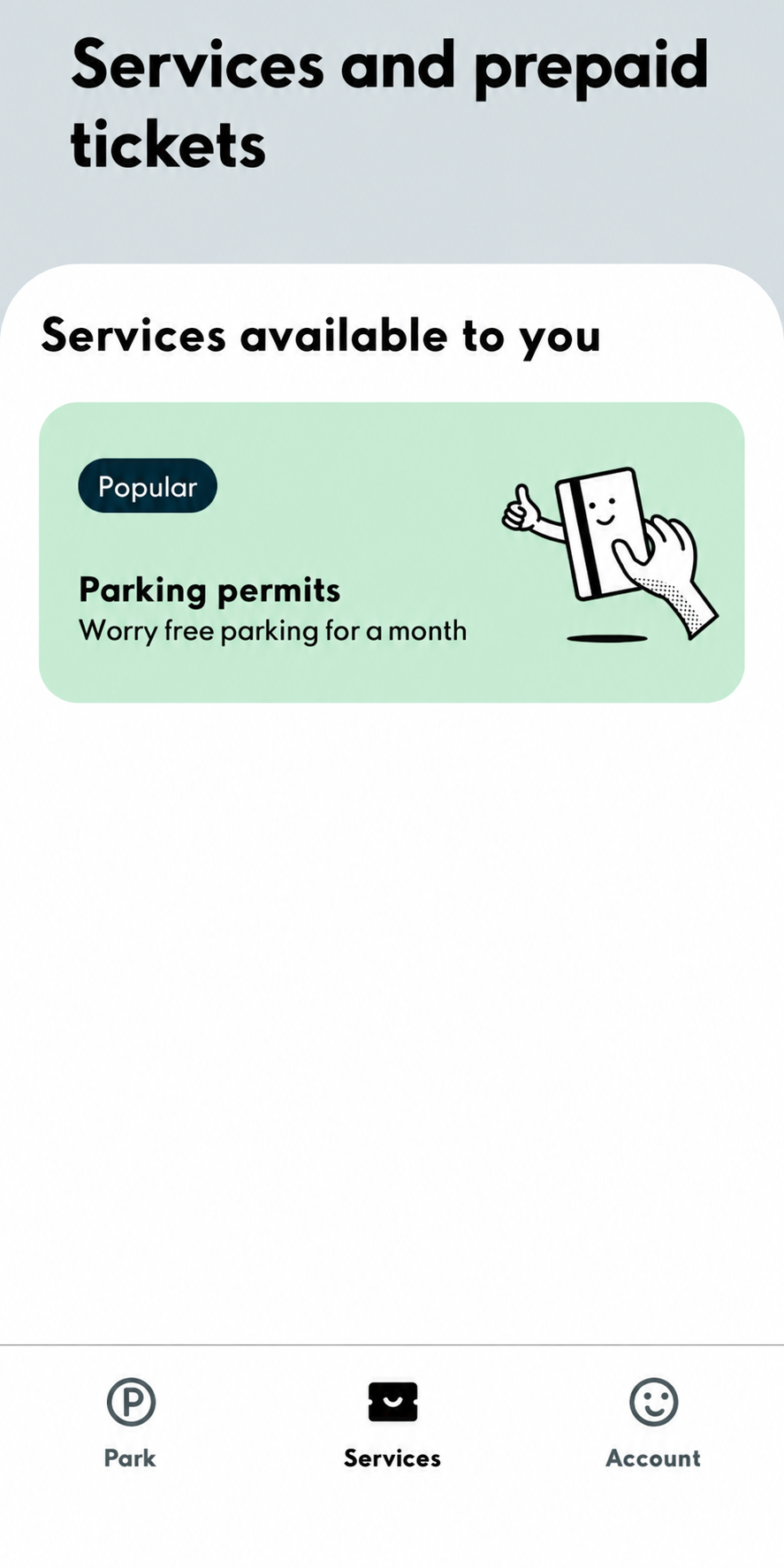
1. Select the Services tab at the bottom of the screen to see the services available to you. Then select Parking permits.
Do you need help installing or setting up the app?
See instructions here.
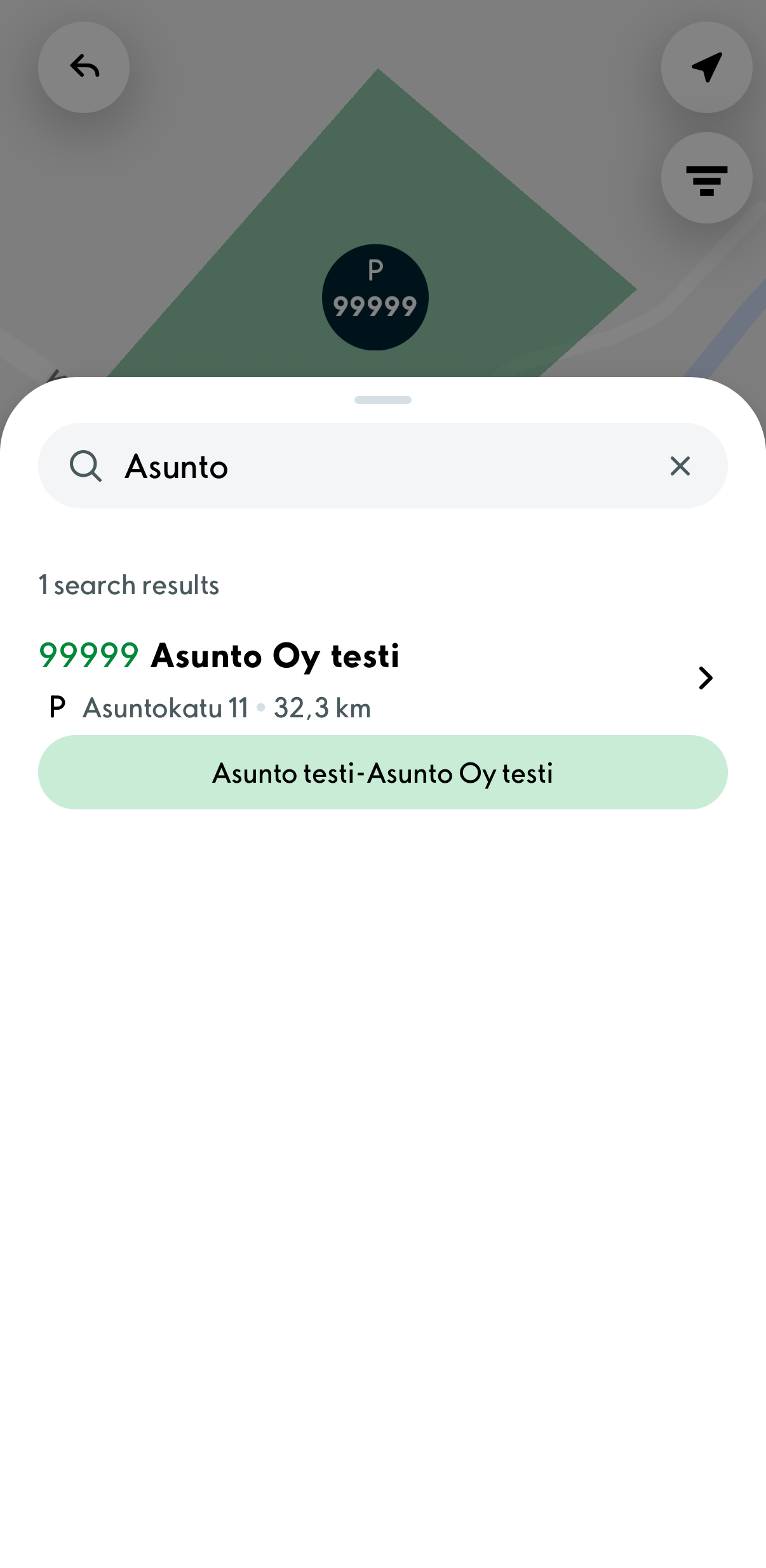
2. Find the location you want by searching by zone or address.
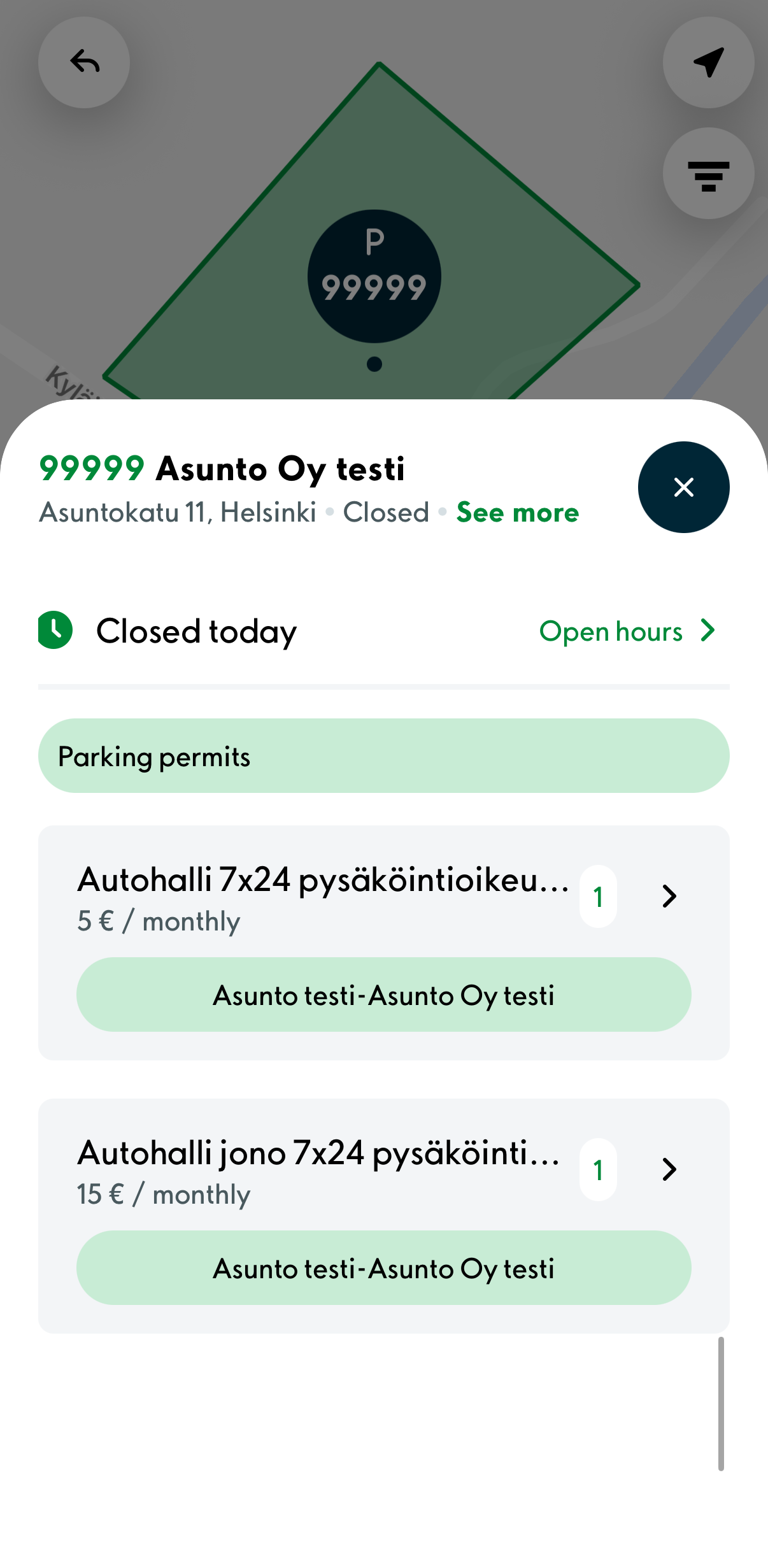
3. Select the parking permit you want by tapping it.
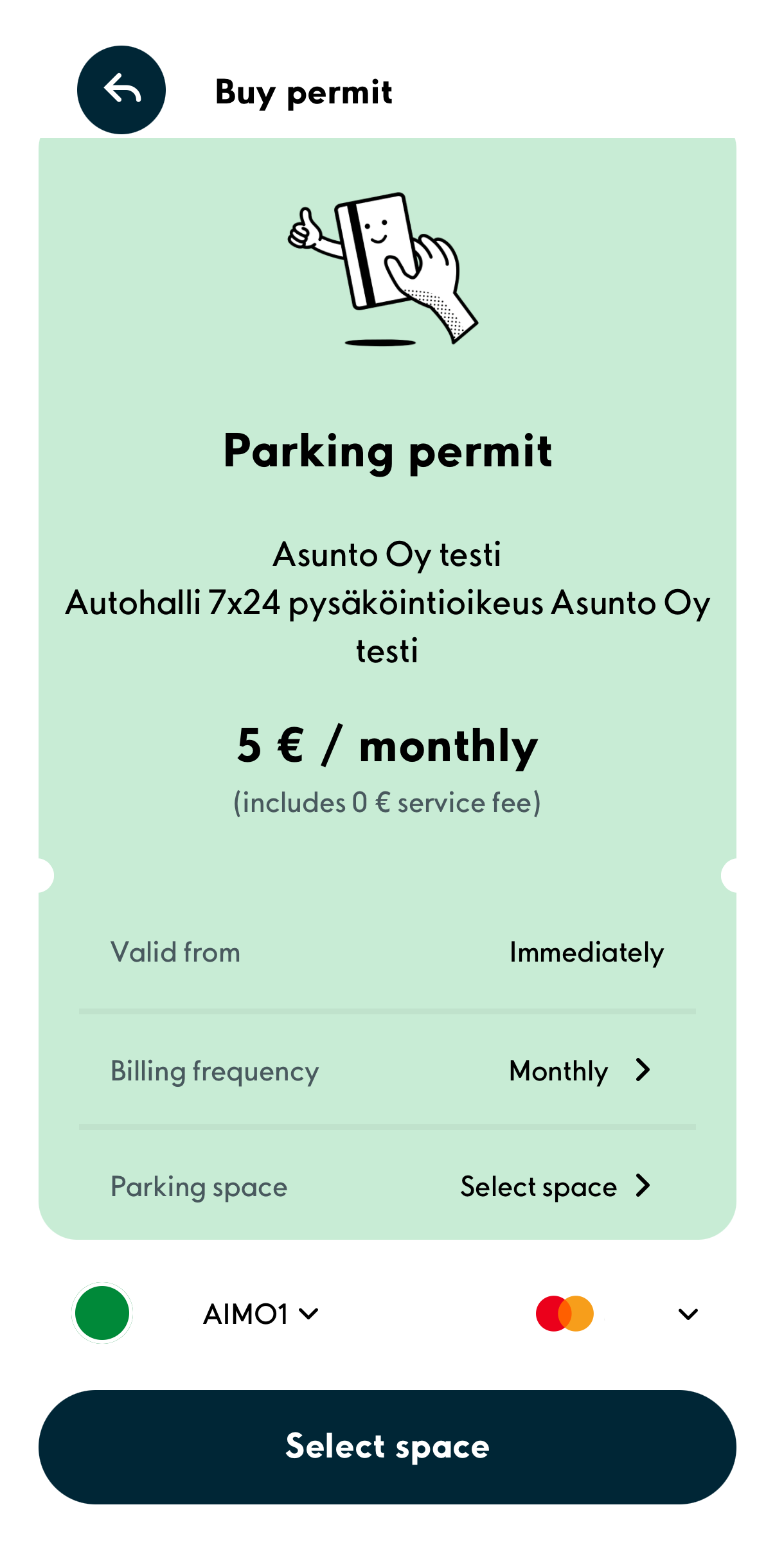
4. Select your preferred parking space. You can see the available parking spaces by selecting Select space.
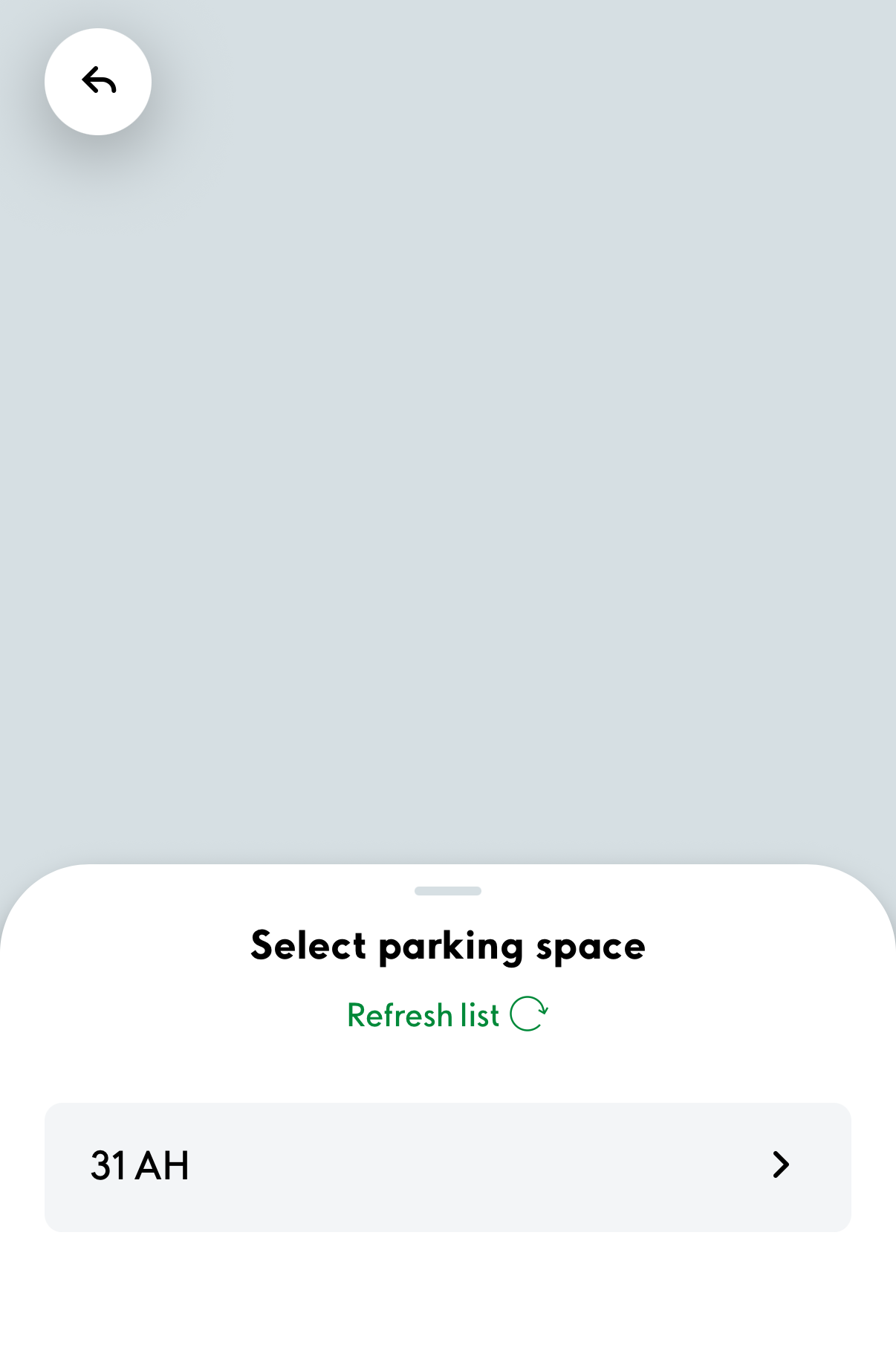
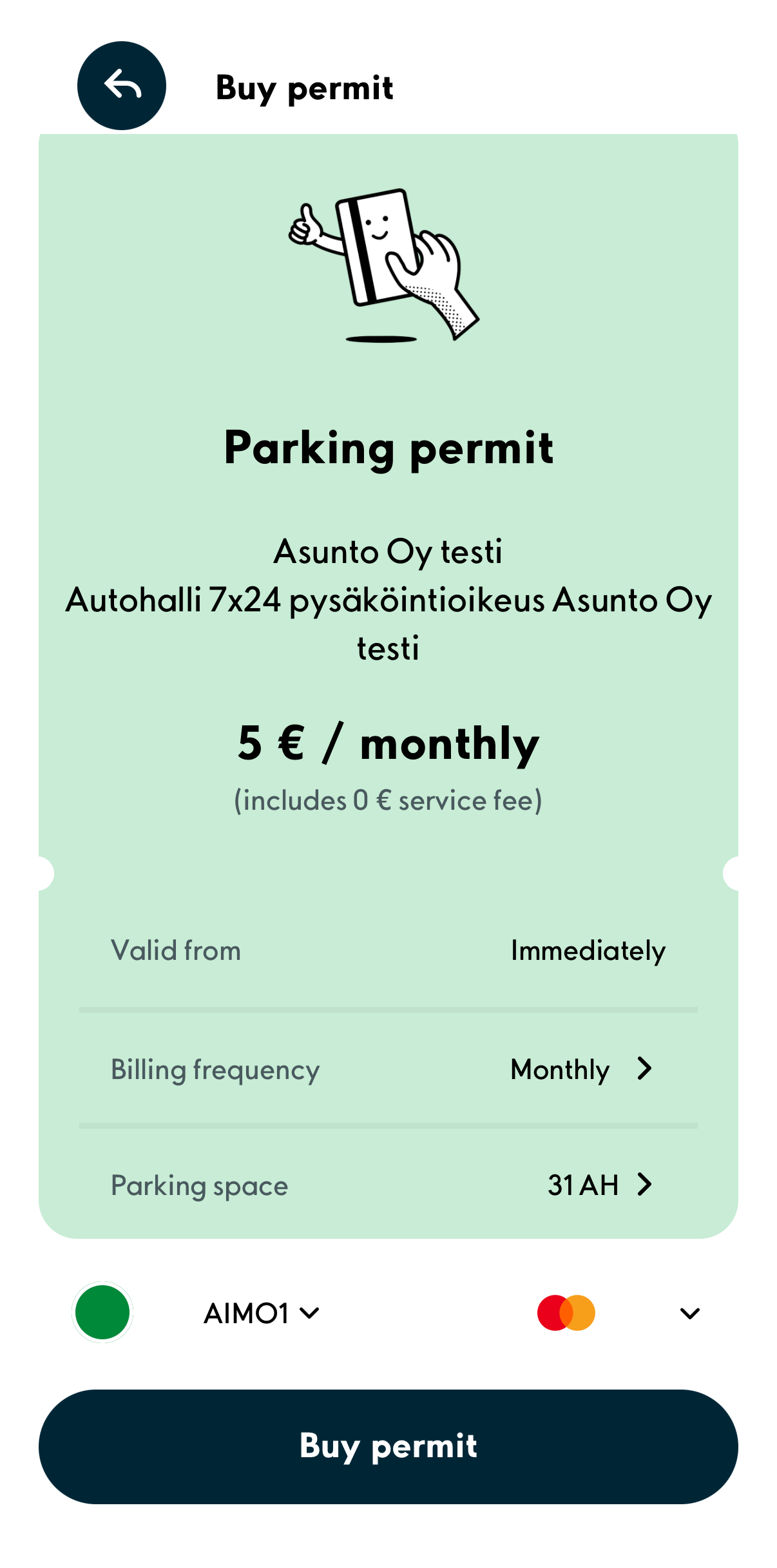
5. Enter the vehicle’s license plate number and select a payment card for the parking permit. Then select Buy permit.
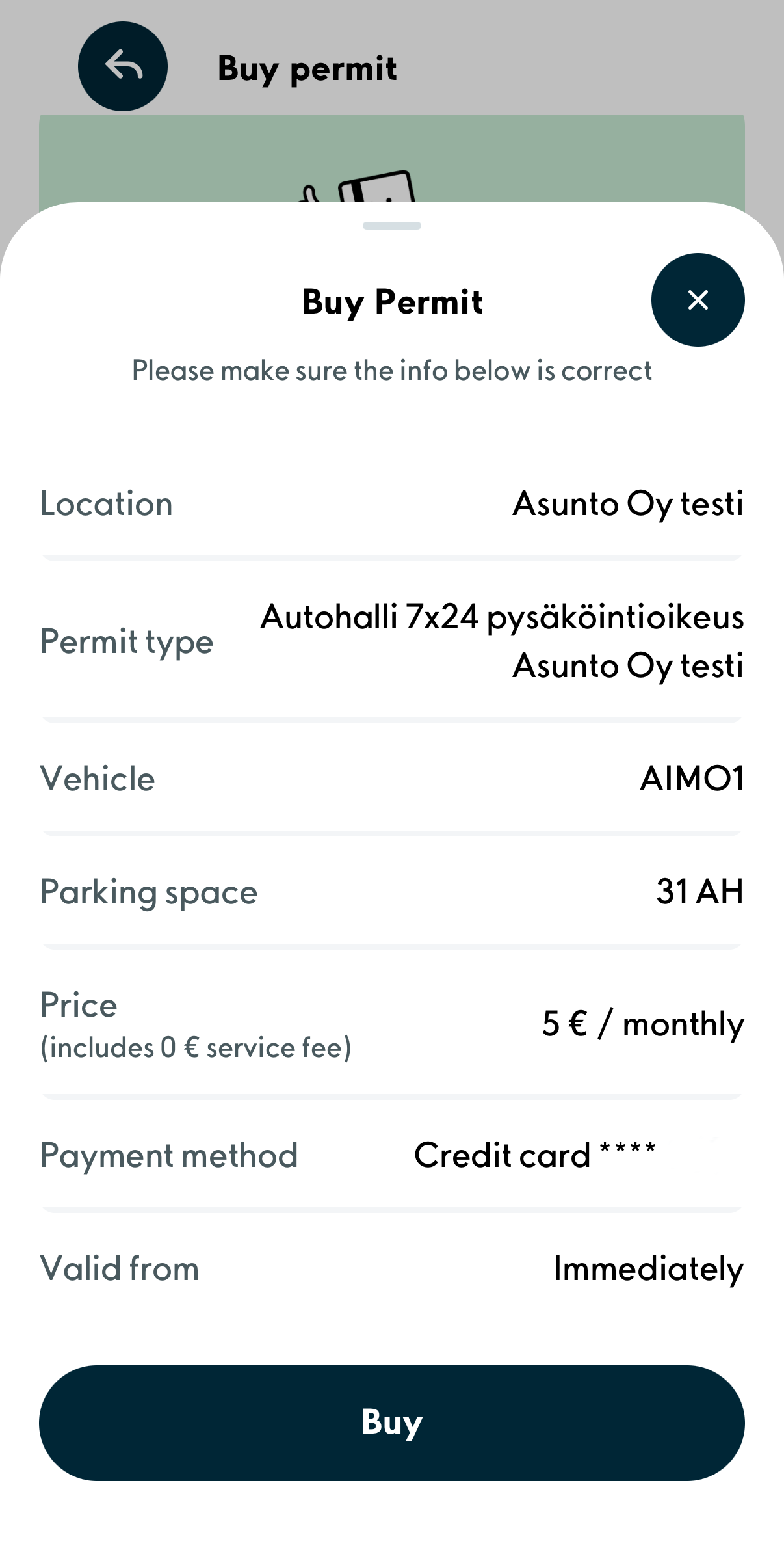
6. Check that all the parking permit details are correct.
If you notice any errors, return to edit your information by selecting X in the top-right corner of the screen.
If all the parking permit details are correct, confirm the purchase by selecting Buy.
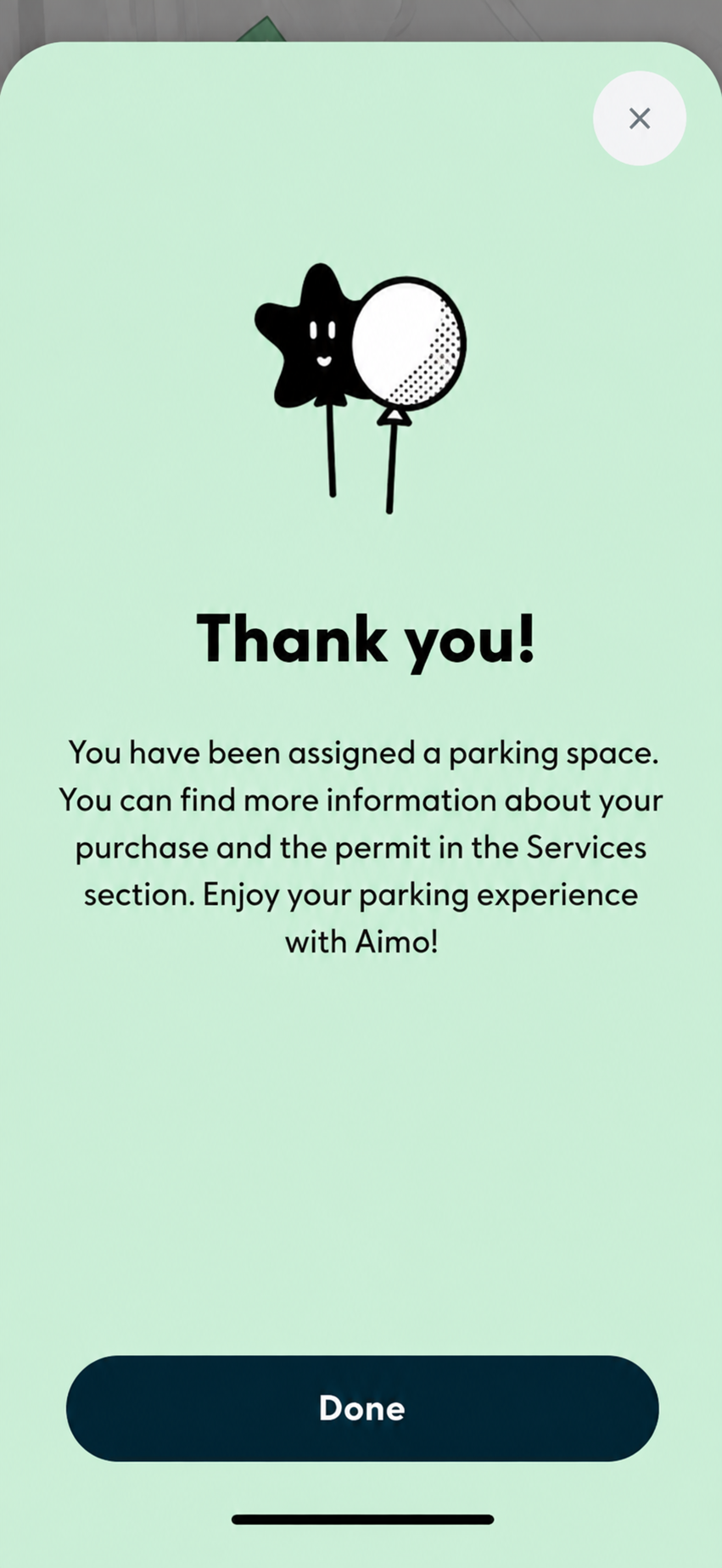
7. When this view is displayed, your parking permit has been successfully purchased. Select Done at the bottom of the screen.
Additional tip
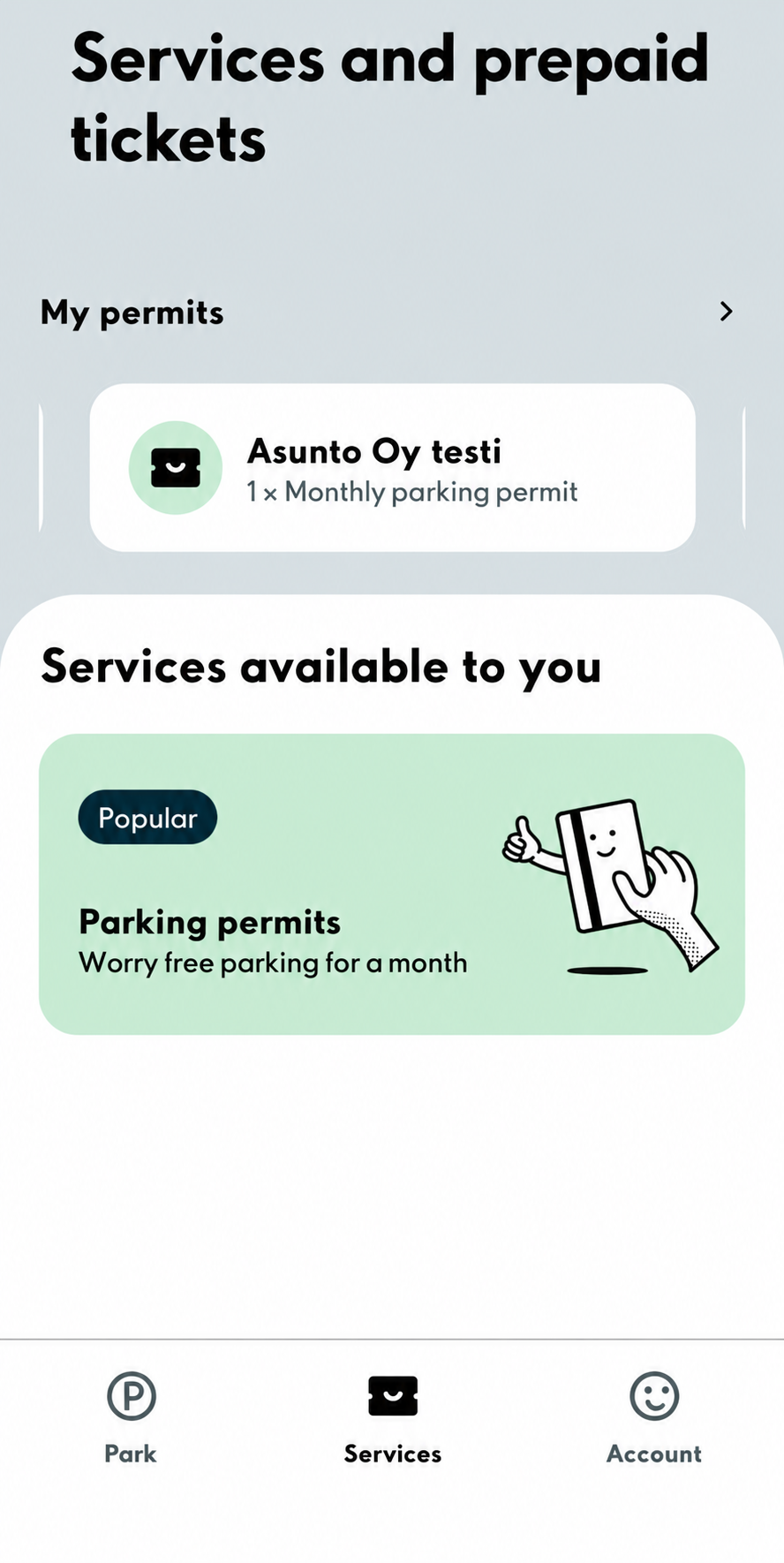
1. Your active parking permits can be found under the Services tab after completing the purchase. If you want to make changes to a purchased permit, select the permit under My Permits.
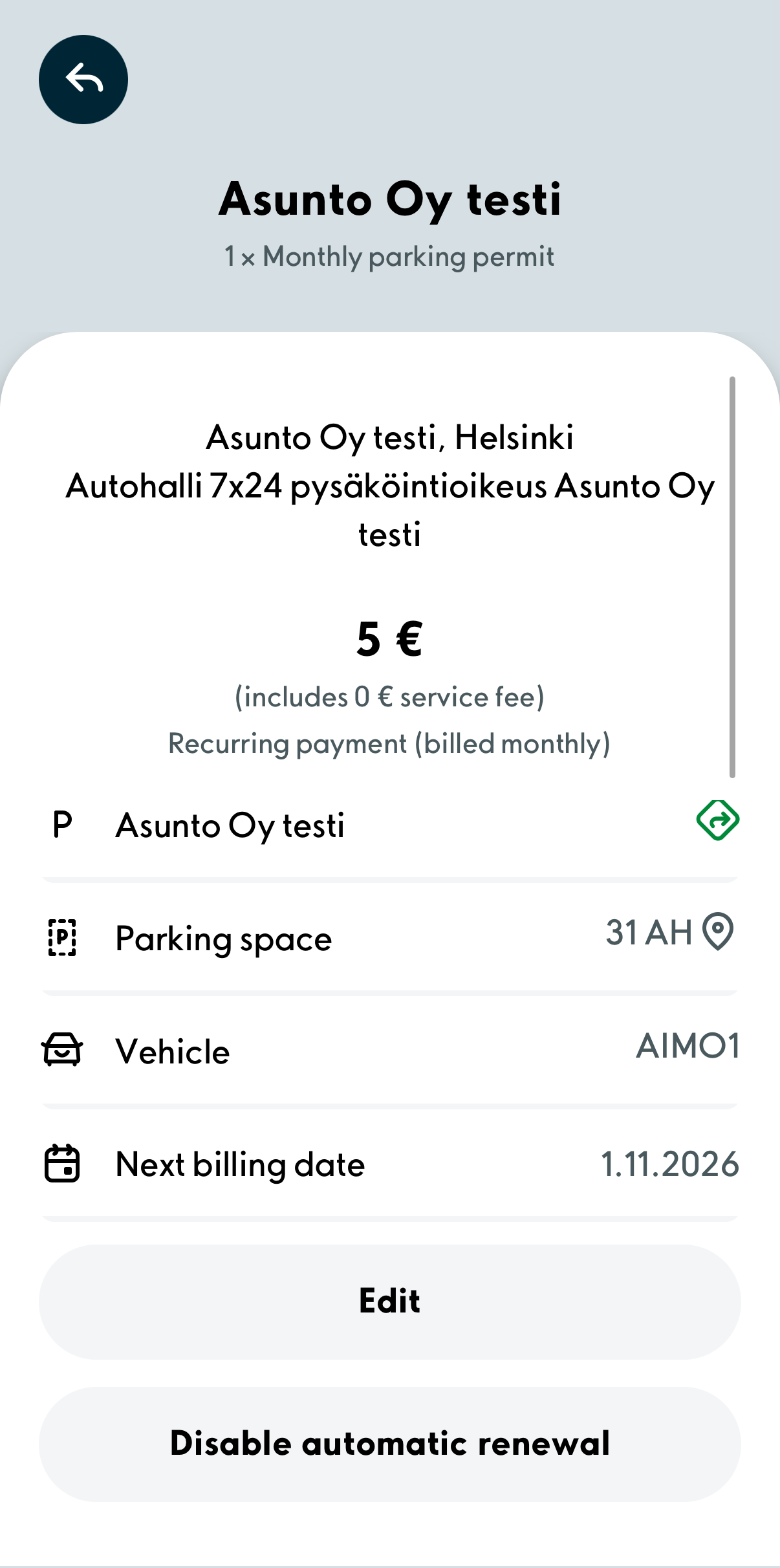
2. You can change the vehicle’s license plate number or payment card by selecting Edit. If you want to cancel the permit completely, select Disable automatic renewal.
