

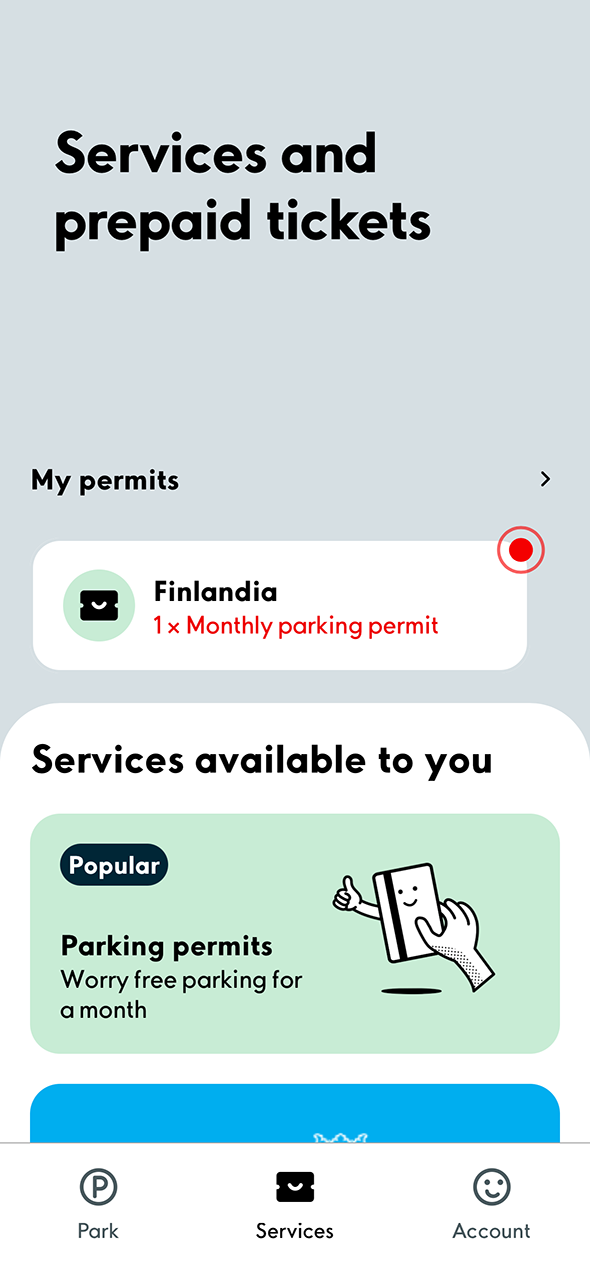
1. Go to the My permits section and select the parking permit assigned to you.
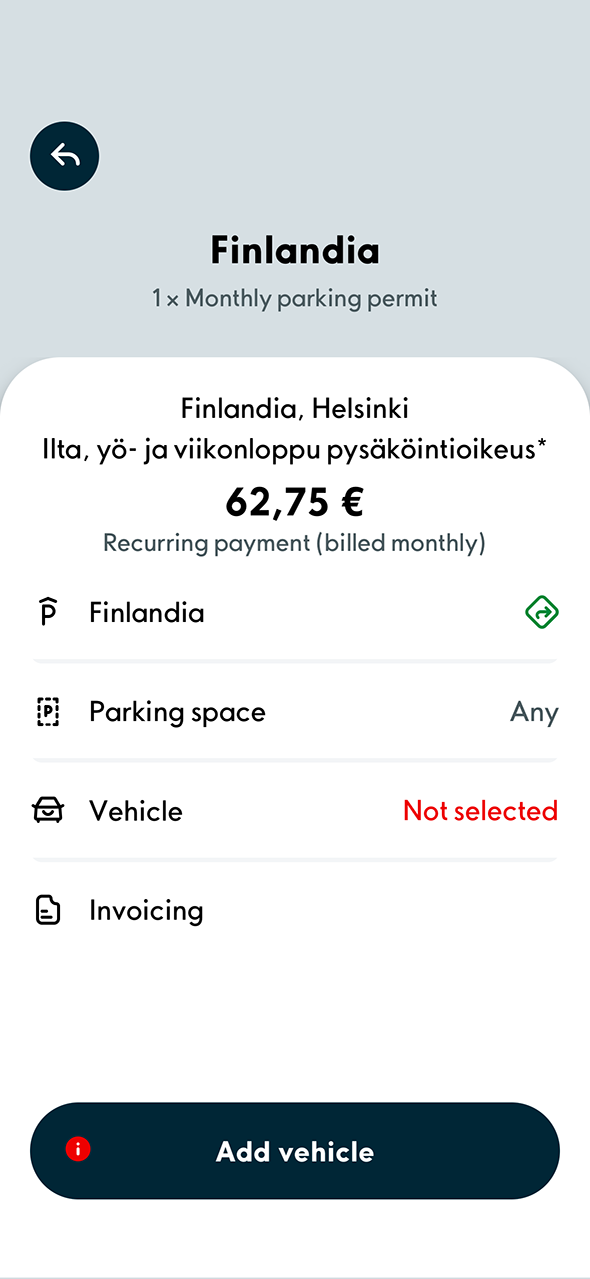
2. If no vehicle is selected for the permit, press Add vehicle.
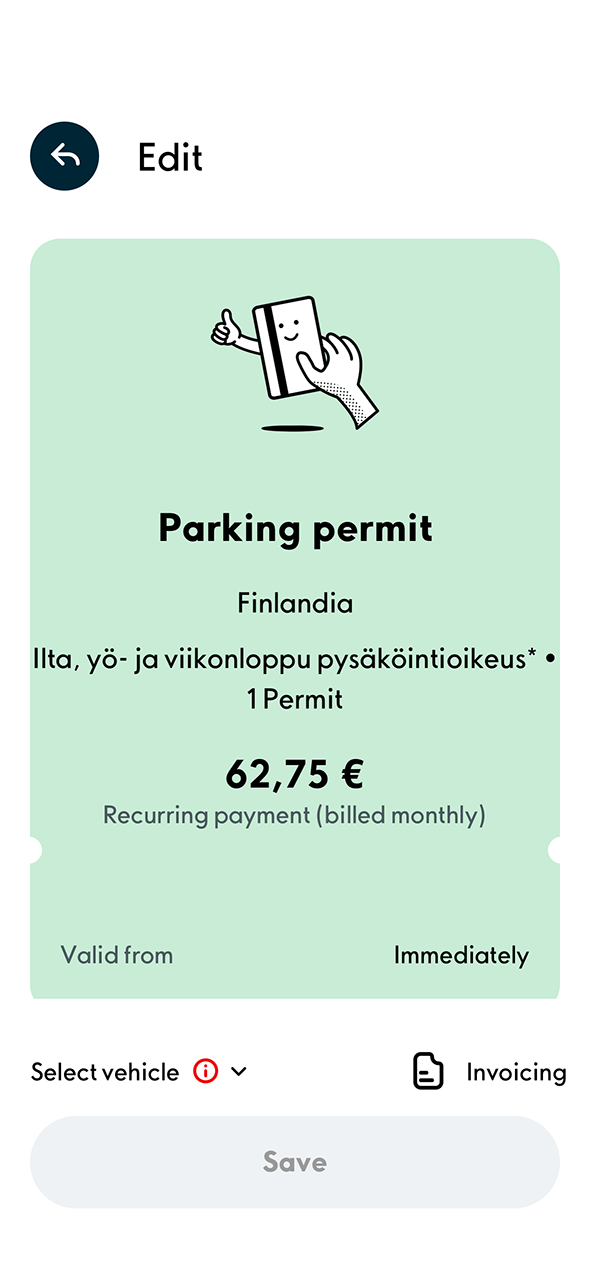
3. Go to vehicle selection in the bottom left corner.
If you have not added any vehicles to the application, the application will ask you to add them. Click here for instructions on how to add vehicles
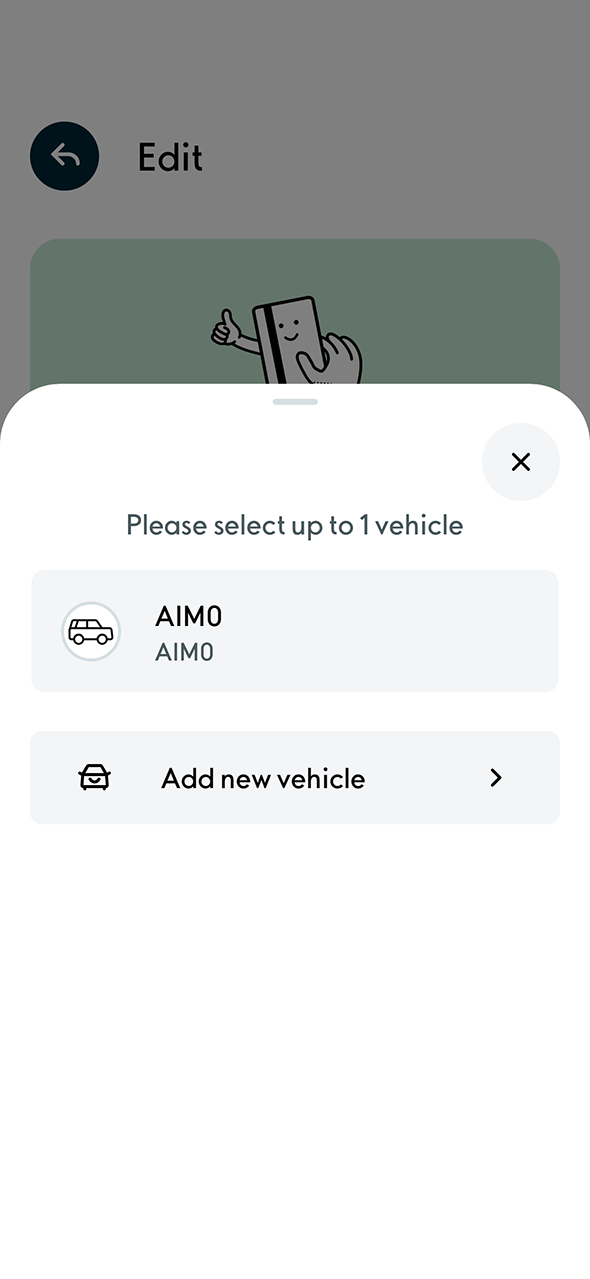
4. Select the vehicle for which you want to use the permit. If you have more than one vehicle, you can always change the vehicle attached to the permit before parking.
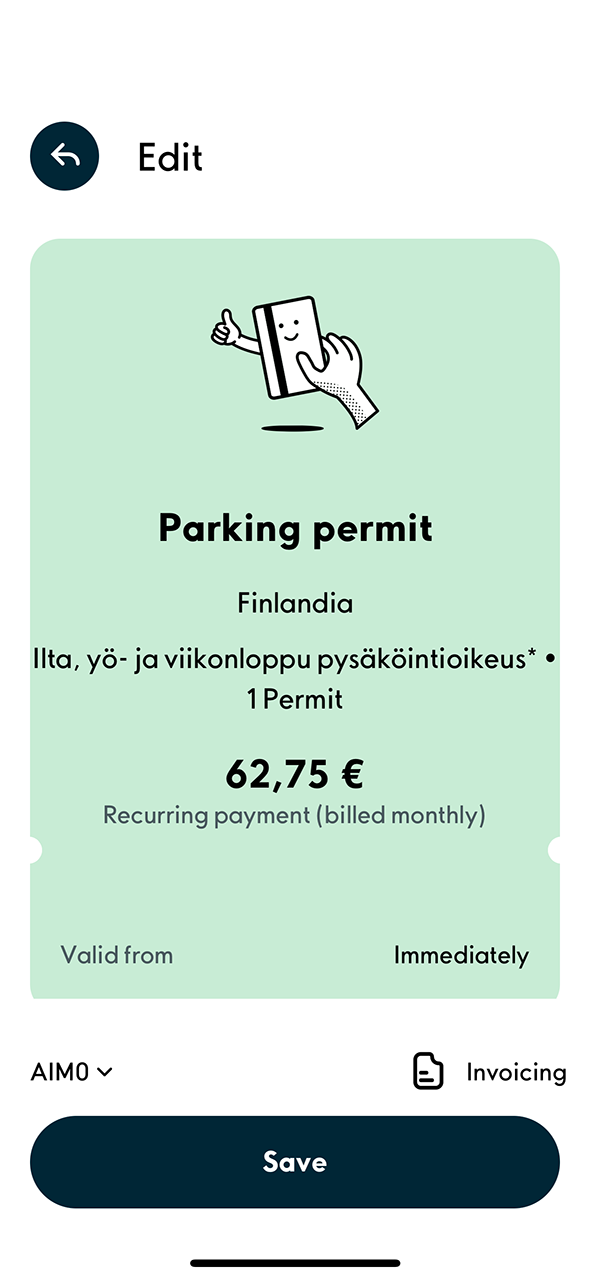
5. Press Save.
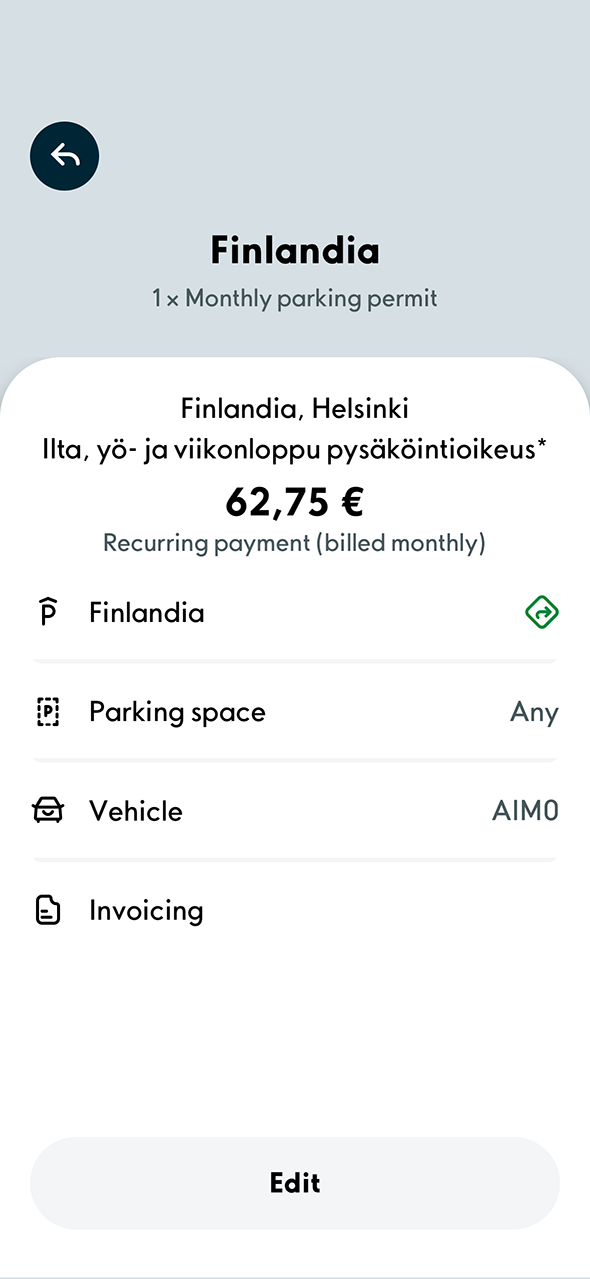
6. The permit has now been claimed.
Additional tip
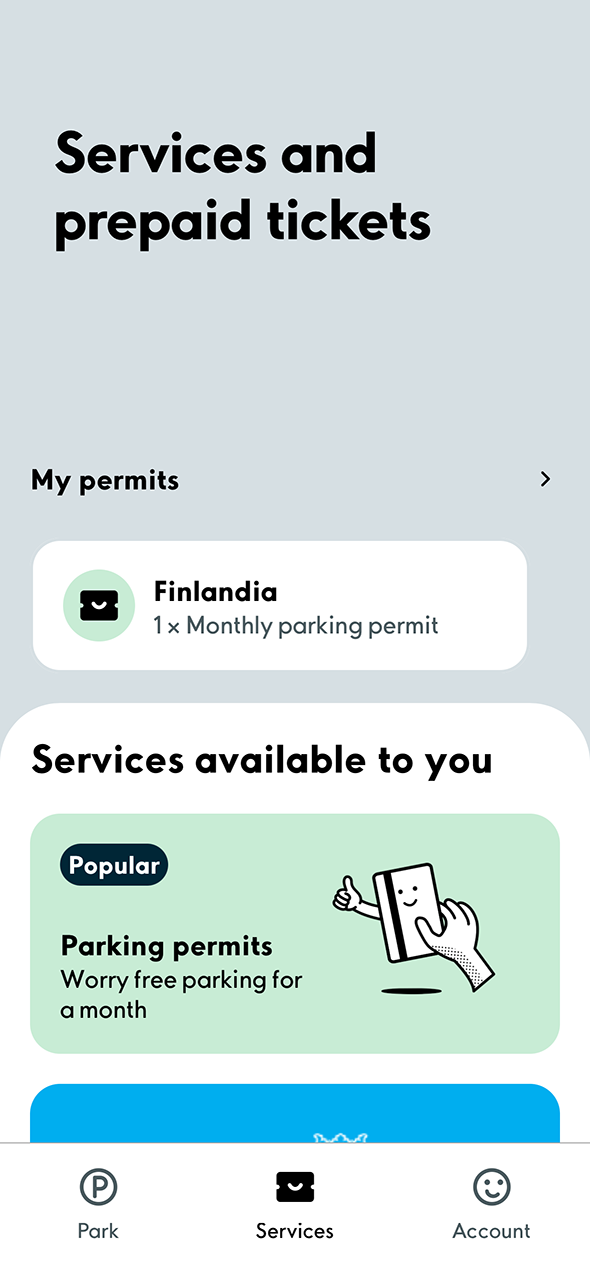
1. Your valid permits are displayed on the Services tab after the transaction. To make changes to an active permit, select the permit in the My permits section.
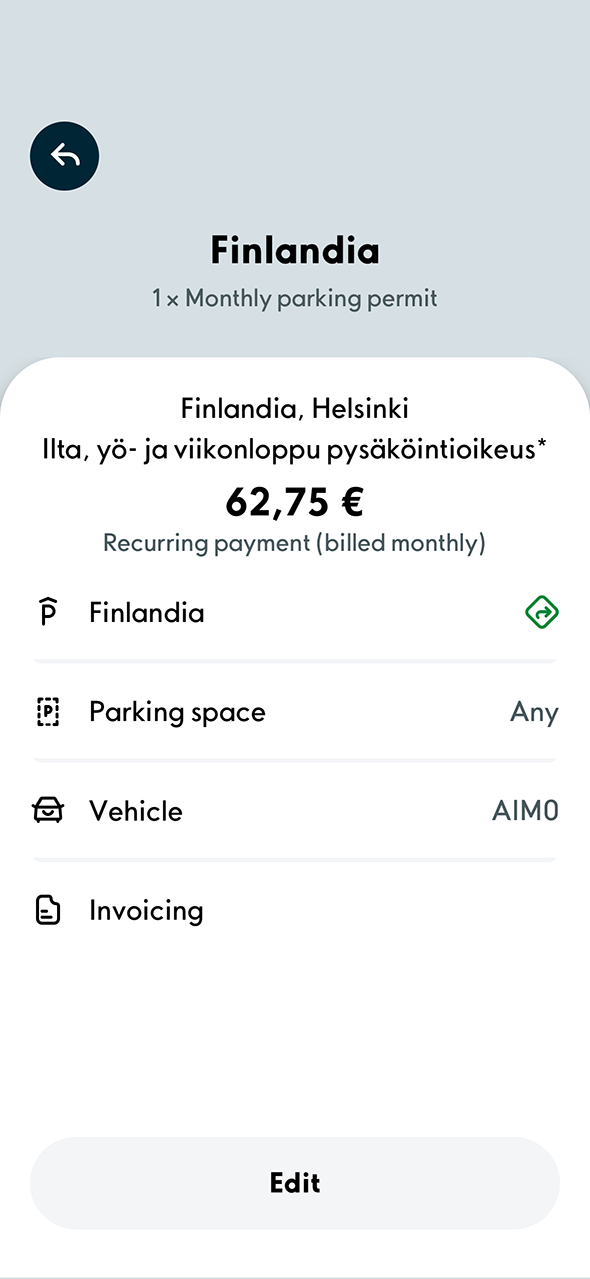
2. You can change the vehicle by pressing Edit. Finally, remember to press Save.
Do you also use the app elsewhere?
By adding a payment card and activating the convenient camera parking feature, all you need to do is enter and exit the parking area: your car will be identified automatically based on its registration number and the payment will be charged automatically to the payment card that you have added to the application.
You can add a payment card under Account › Payment methods › Add payment method.
You can activate camera parking under Account › My vehicles › select vehicle › Camera parking.
